Orderman Installation Guide
Purpose
This guide explains how to publish and configure the fiskaltrust InStore App for Orderman Android POS devices via the Orderman SystemCenterNext (SCN) Portal.
Prerequisites
Before starting, ensure you have:
- An active Orderman SCN account
- A site inside your company account
- A supported Android device (e.g., an Orderman10) enrolled to your site and online
Steps for single, manual device install
Step 1: Login to SCN
- Navigate to Orderman SCN
- Login using your account information (e.g. via
Sign in with Google)
Step 2: Navigate to the site / device you want to configure
- Click on the site in which your device is enrolled
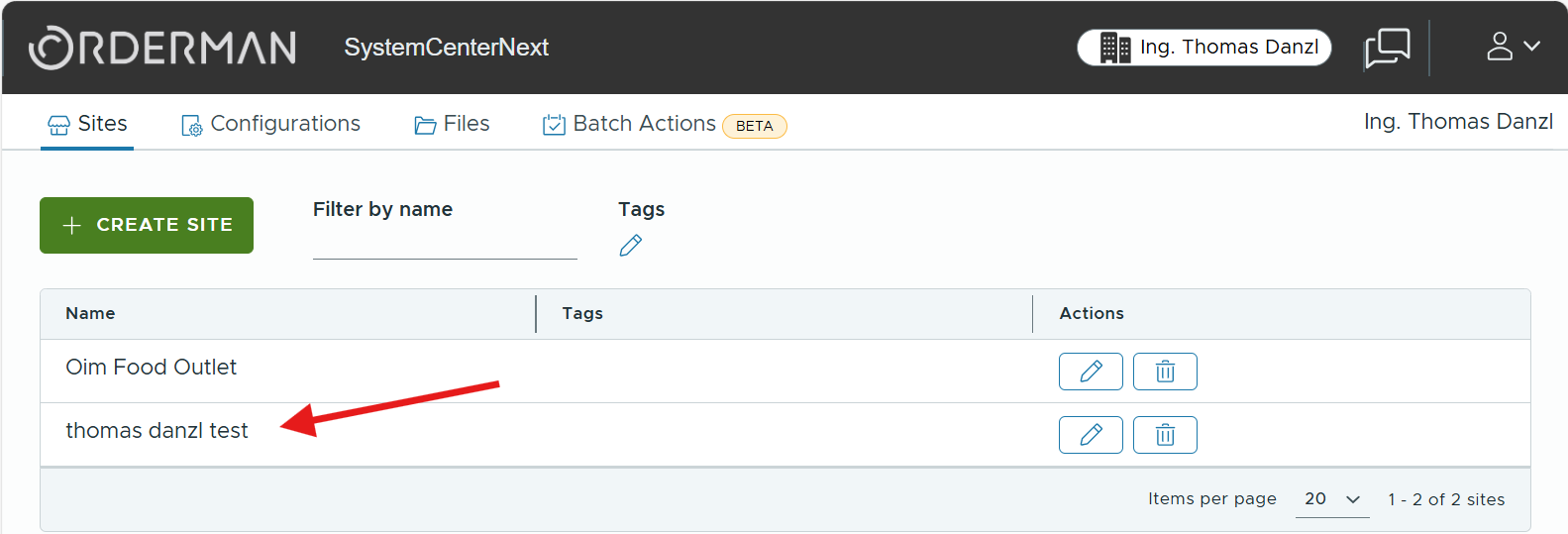
Figure 1. Selecting the site in which the device is enrolled in the Orderman SCN Portal. - Click on your device to get to the device details
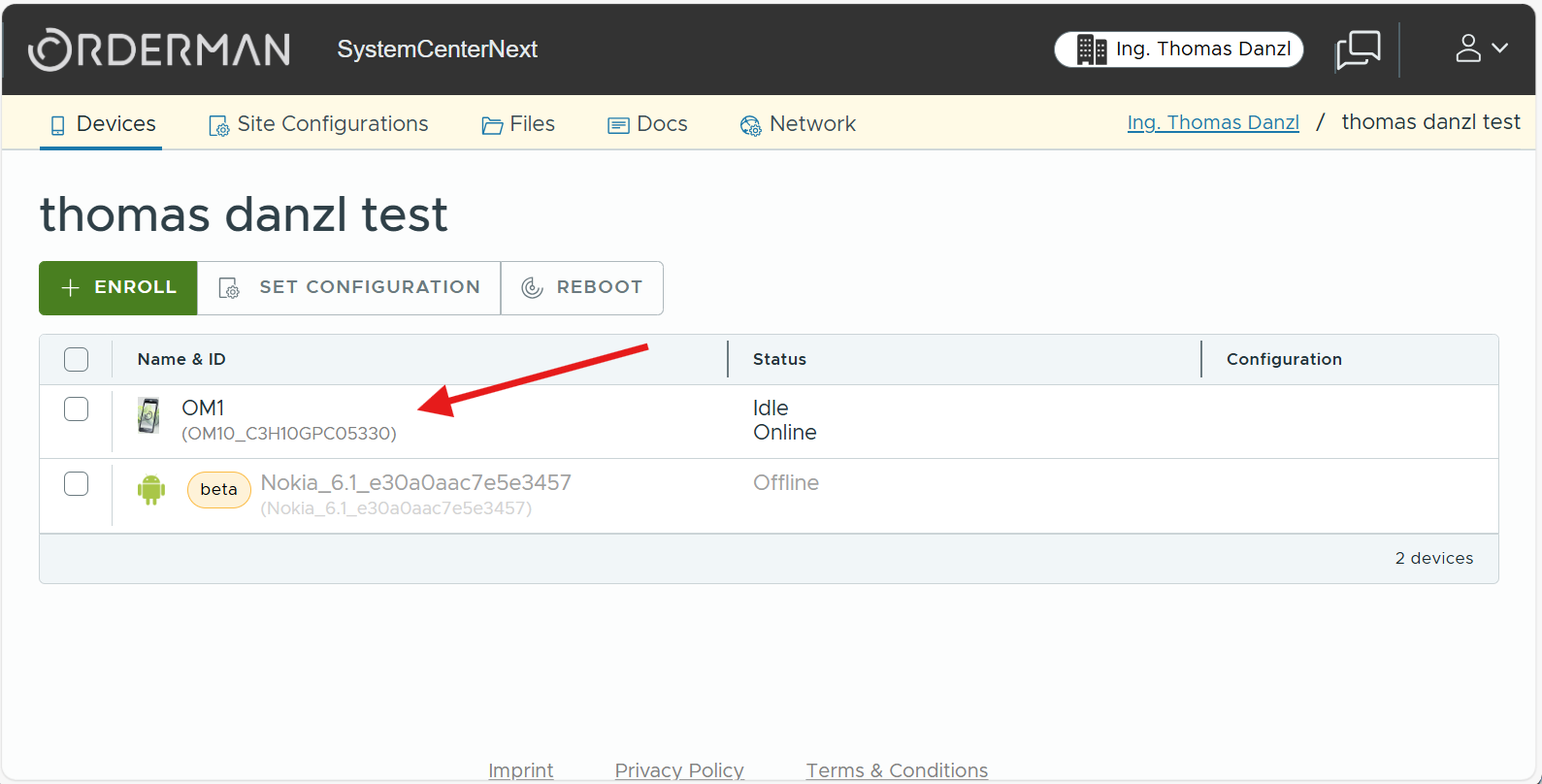
Figure 2. Opening the device details in the Orderman SCN Portal. - Click on the
Configbutton on the right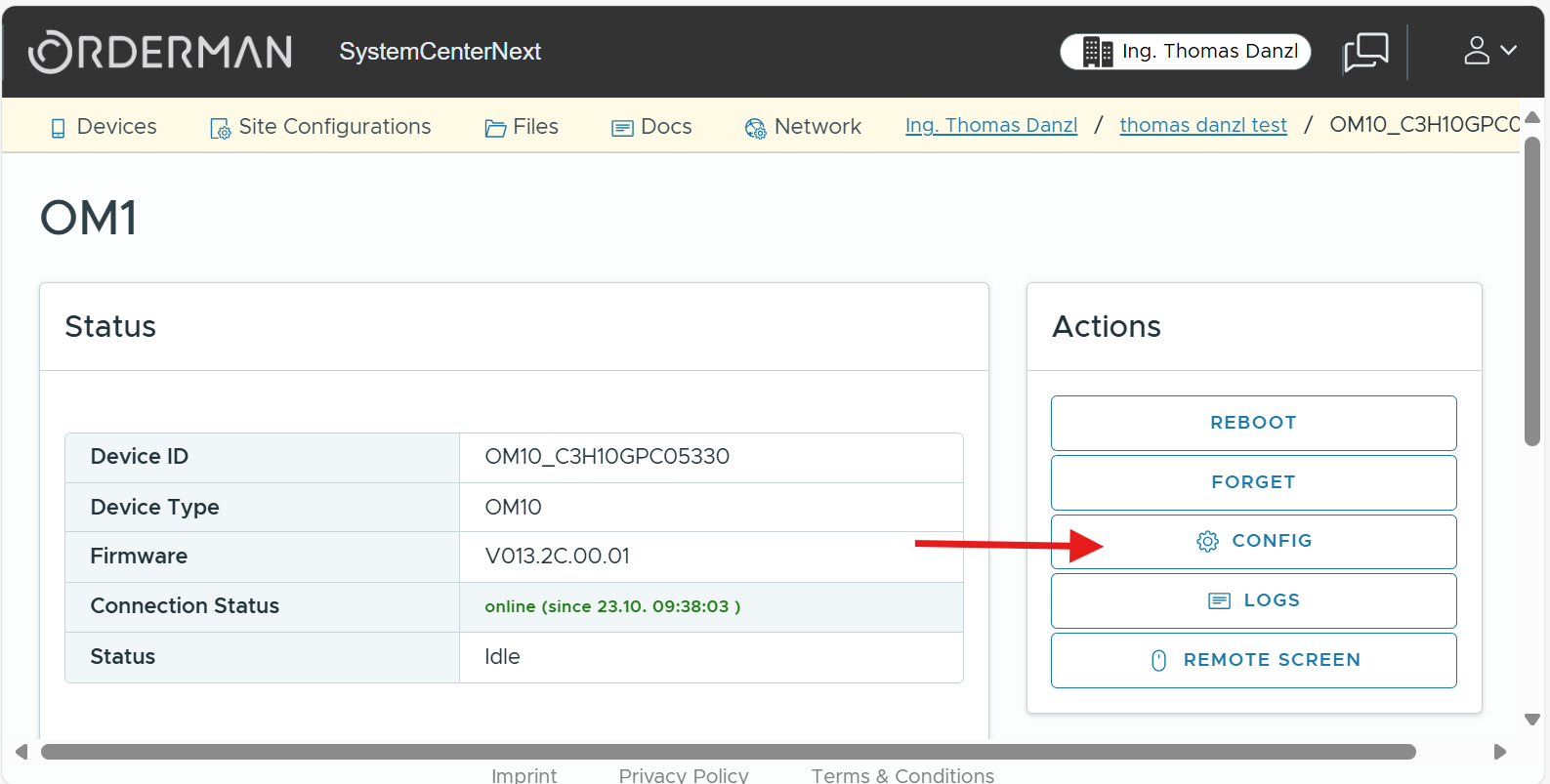
Figure 3. Opening the device Config in the Orderman SCN Portal.
Step 3: Choose the app to install
- Navigate to the
Applicationscard and click on+ INSTALLbutton on the right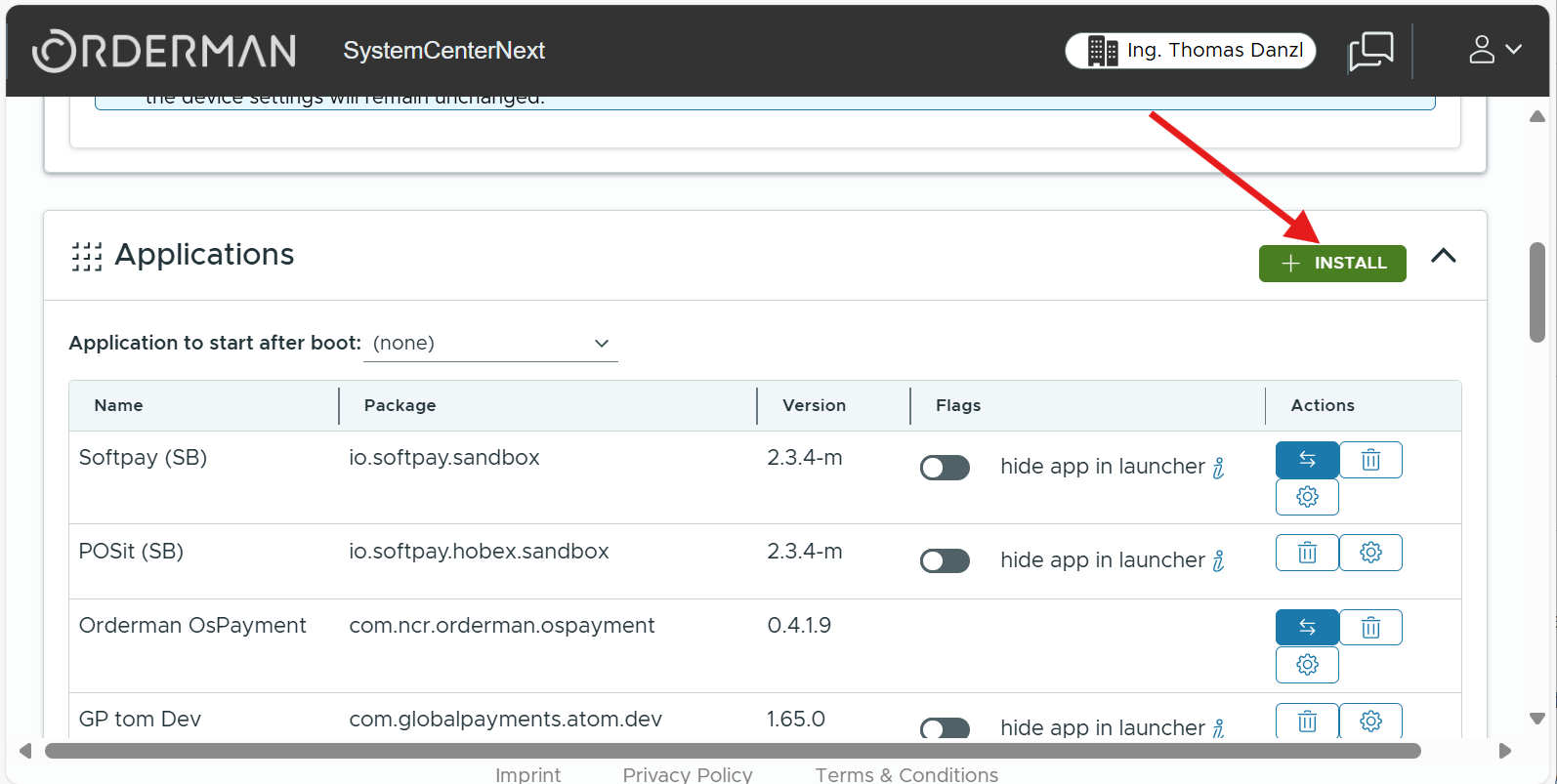
Figure 4. Starting an app install from the Applications card. - Navigate to the
Public files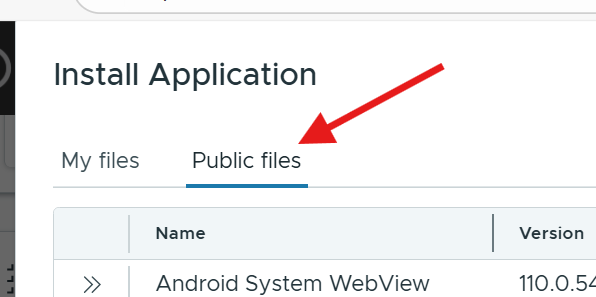
Figure 5. Navigating to the Public files section. - Scroll and find the
fiskaltrust InStore Appentry. To install the latest available version just click this entry.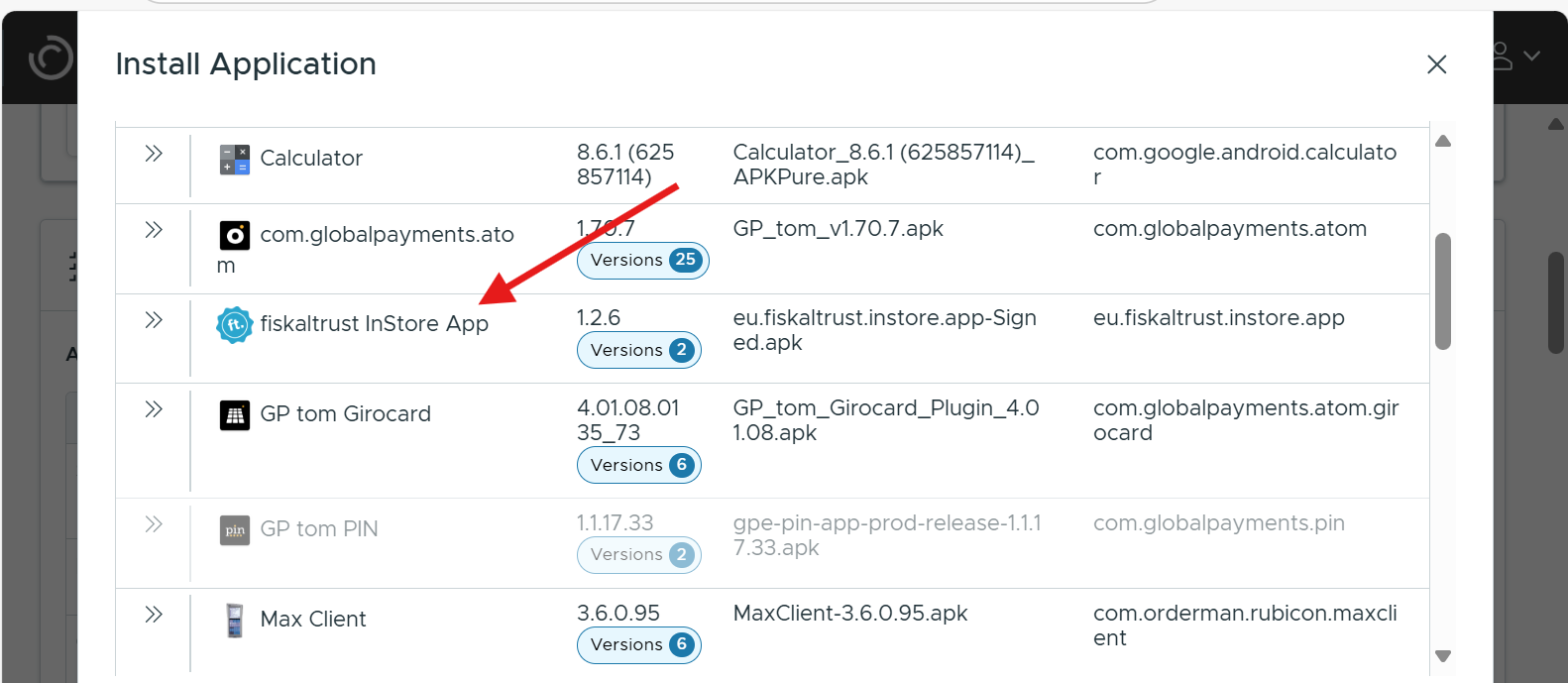
Figure 6. Selecting the fiskaltrust InStore App entry to install the latest version.
Step 4: Apply your changes
The fiskaltrust InStore App should now be visible in the Applications card as to be installed. Here an example how this entry looks like when installing v1.2.6:

Figure 7. The InStore App shown as pending installation (example: v1.2.6) in the Applications card.
IMPORTANT: Do scroll down now and click on APPLY on the very left bottom in the devices Config to apply all changes (like our newly added app).
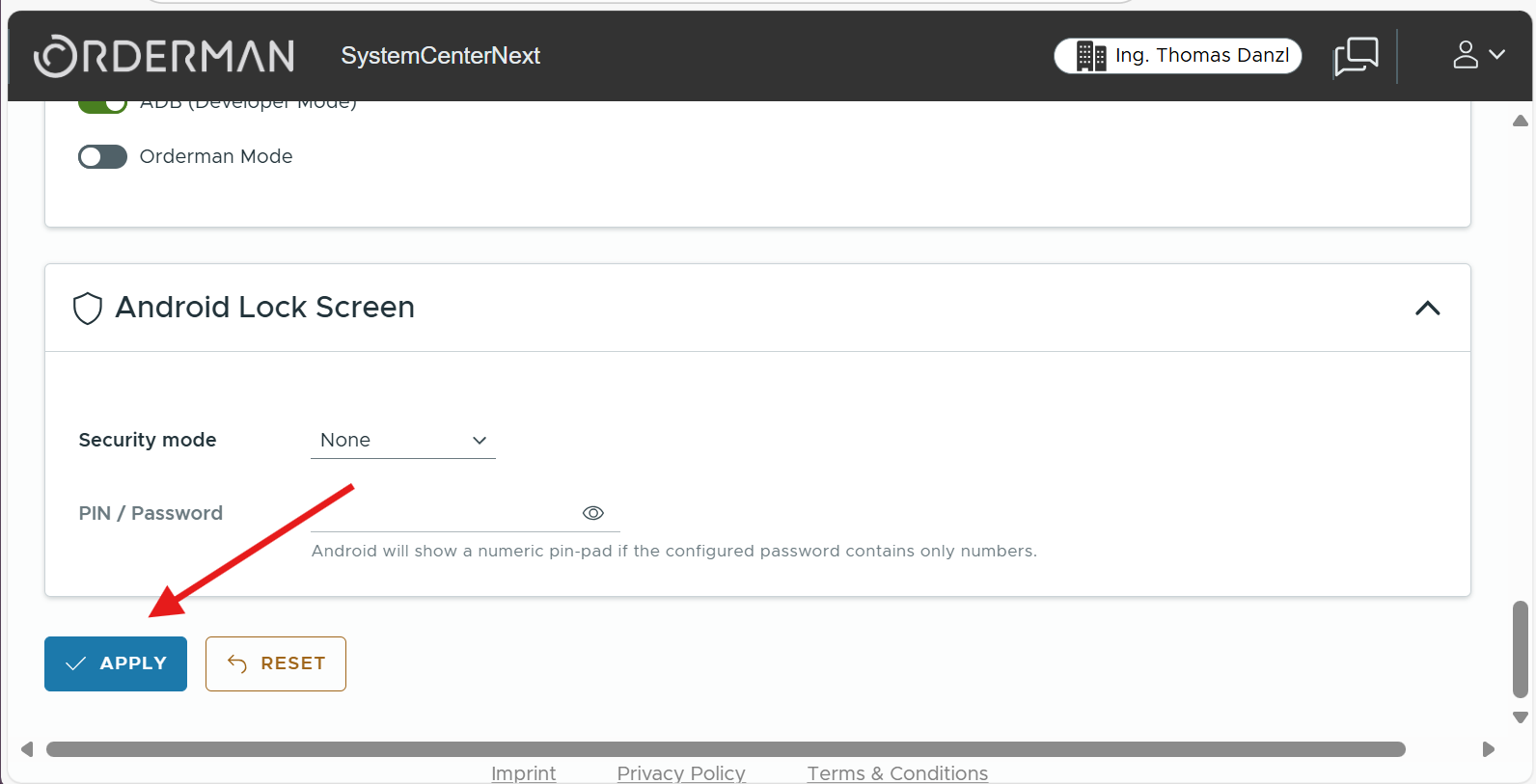
Figure 8. Applying the configuration changes with the APPLY button.
Done - next is to configure the app
The devices list will now show your device and the installation progress.
When done the fiskaltrust InStore App should now be visible in the Orderman SCN Launcher.
Continue with starting and configuring in our setup guide.
Advanced install options
There are advanced options on how to configure multiple device with the same configuration template in one site or how to keep the app automatically updated via batch actions. Please get in contact with Orderman to learn more about the advanced options.